> For the complete documentation index, see [llms.txt](https://docs.mechcloud.io/llms.txt). Markdown versions of documentation pages are available by appending `.md` to page URLs; this page is available as [Markdown](https://docs.mechcloud.io/cloud-computing/add-an-account/aws.md).
# AWS
You will need to configure MechCloud IdP as an identity provider in AWS in order to make this integration work without AWS API credentials.
### Configure MechCloud IdP into AWS Account
#### Add an identity provider
* Log on to [AWS console](https://aws.amazon.com/console).
* Navigate to **IAM -> Identity providers** and click on **Add provider** button to add an OIDC identity provider with following details -
| Field | Value |
| ---------------- | -------------------------------------------------------------------------- |
| **Provider URL** | [https://id.mechcloud.io/](https://mechcloud-piston-preview.eu.auth0.com/) |
| **Audience** | n6dMQlo8ZCE5QxLY4o2KjeBaSn8eefTX |
#### Create an IAM role
Now assign an IAM role to the newly added **OIDC** provider by following below instructions -
* Go to **IAM -> Identity providers** and click on the provider created in the previous section.
* Click on A**ssign role** button.
* Select **Create a new role** radio button.
* Select following details on the next page and click on **Next** button -
* Select permissions policies (e.g. [AmazonEC2ReadOnlyAccess](https://us-east-1.console.aws.amazon.com/iam/home?region=ap-south-1#/policies/details/arn%3Aaws%3Aiam%3A%3Aaws%3Apolicy%2FAmazonEC2ReadOnlyAccess)) on the next page which you want to assign to this role and click on the **Next** button.
* Specify **MechCloudWebIdentityRole** (or any other name) under Role name on the next page and click on **Create role** button to create the role. Make sure you replace **MechCloudWebIdentityRole** in following steps if you decide to use a different name for this role.
* **(IMPORTANT)** Make sure that you specify a condition under the **Trust relationships** tab of **MechCloudWebIdentityRole** role as shown in the below image so that only users with specific email ids can assume this role. **In the absence of this condition, any user who is logged into MechCloud and knows your AWS account number and the role name will be able to assume this role on your AWS account which can result in unexpected charges if you have assigned permissions to provision AWS resources to this role.**
* **(IMPORTANT) Also, make sure to revoke existing sessions whenever you remove a user from the condition highlighted above. This will block the access for those users who were removed from the above condition but still have a valid session token.**
### Add an AWS Account with newly created IAM Role
* Log on to [MechCloud](https://portal-preview.mechcloud.io) and navigate to **Infrastructure** -> **Cloud Accounts**.
* Select a team.
* Select AWS under **Select a cloud provider** dropdown. This will display all the cloud accounts added for the AWS cloud provider.
* Click on **New Cloud Account** button.
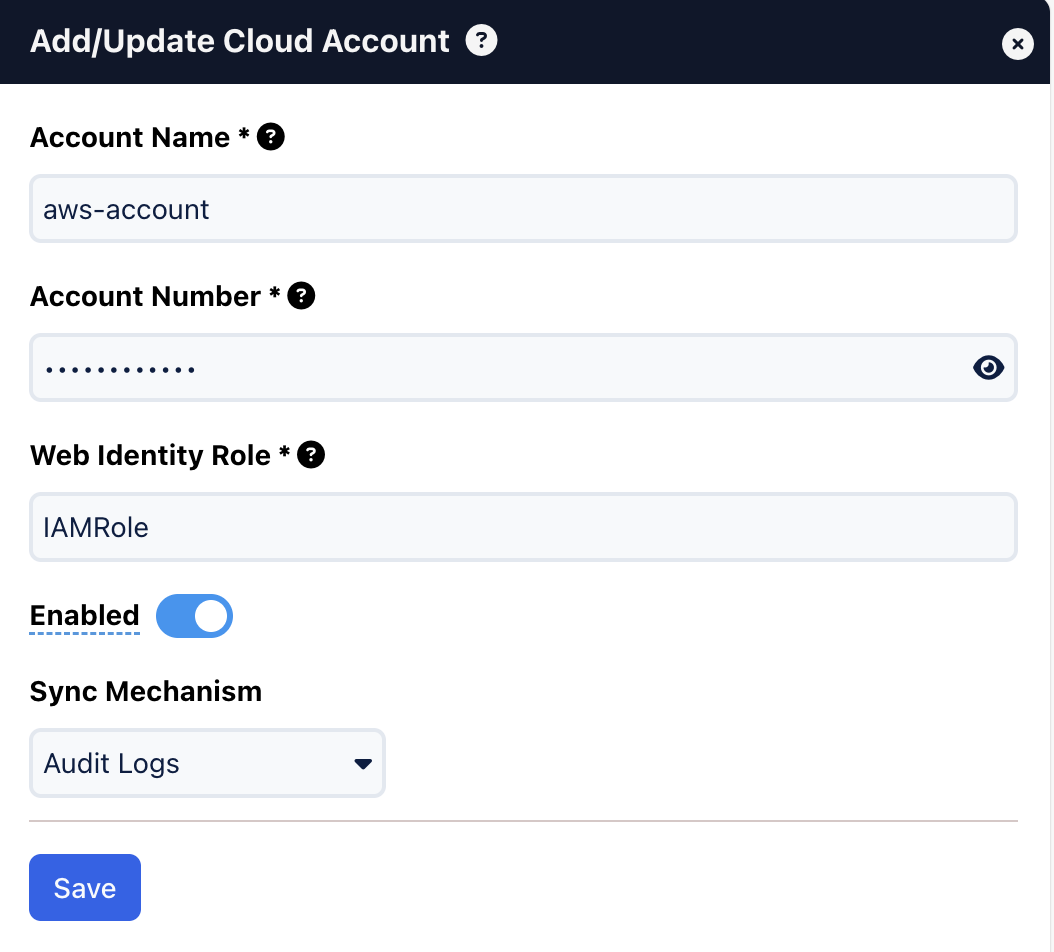
* Enter a name for your account.
* Enter AWS account number and IAM role details as shown below -
* Click on **Save** button to add the cloud account.